How to configure your Aloft server
Quick Links
Section titled “Quick Links”- Using AleForge’s Blacksmith’s Portal
- Self-Hosting/Other Providers
This guide will show you how to configure your Aloft server
Configuring Your Aloft Server
Section titled “Configuring Your Aloft Server”Using Blacksmith’s Portal
Section titled “Using Blacksmith’s Portal”- Go to the Blacksmith’s Portal
- Open
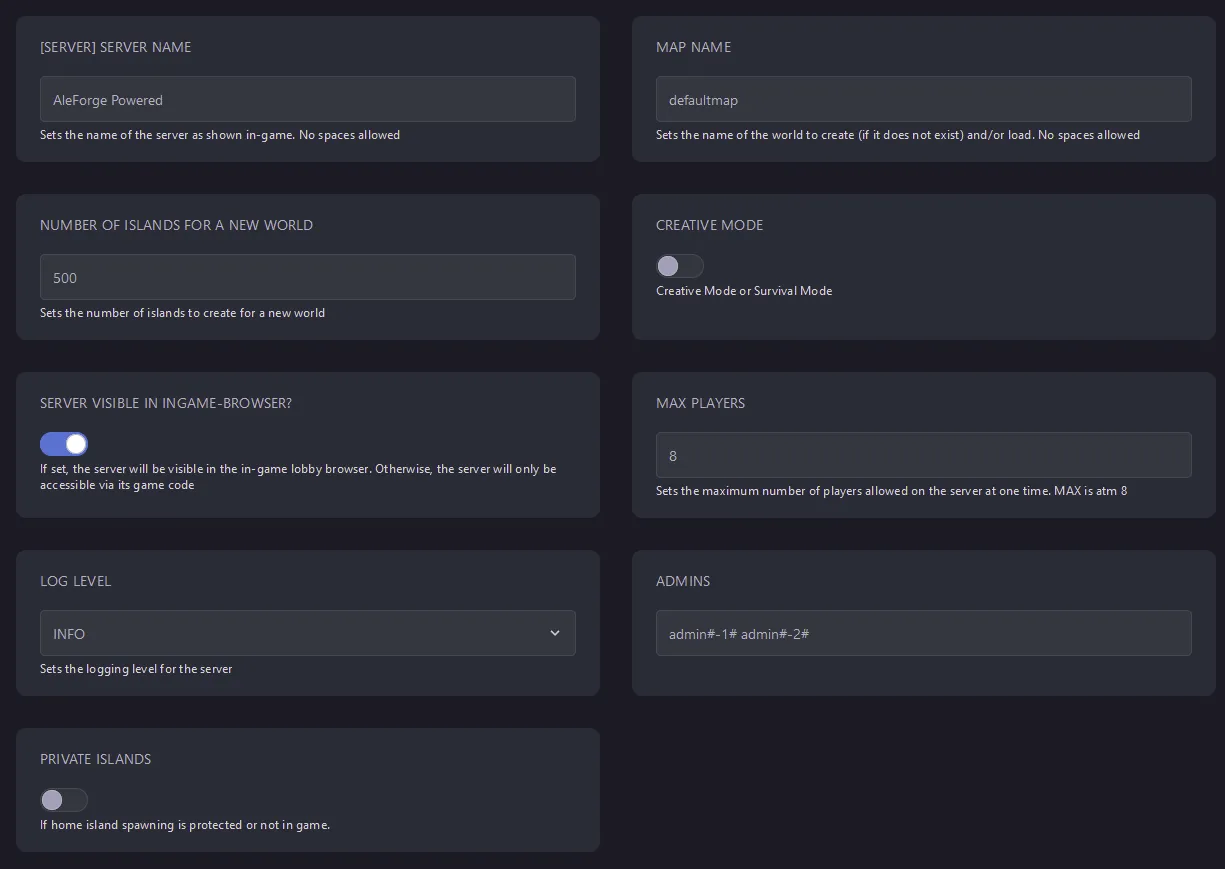
Startup - Here, you can find all the parameters you can adjust for your Aloft server. Edit one and restart the server, and it will take effect.
Self-Hosting/Other Providers
Section titled “Self-Hosting/Other Providers”- Go to your Aloft Dedicated Server’s install directory
- Open
AloftServerNoGuiLoad.ps1with the text editor of your choice - Edit line 73 to make adjustments to the game config. You will want to edit the numbers/text between the two # symbols

- For example, if I wanted to change the player count from 8 to 4, I would change
playercount#8#toplayercount#4# - Save the file and then launch the script
Closing
Section titled “Closing”Now you know how to configure your Aloft server to play just how you need it to!
Get your own super-powered and affordable ALOFT server today!